
Meet Wingman 2.0.
The second generation of Wingman, our AI-powered quoting assistant — now extracting 14x more technical elements per print, with five new extraction types, accuracy improvements across the board, and material suggestions during quote setup.
Overview
Introducing Wingman 2.0, a major upgrade to Wingman’s print extractions. Wingman now reads, highlights, and extracts almost every kind of callout on a print, recognizes the structural regions of the drawing itself, and is materially more accurate on the callouts it already extracted.
With Wingman 2.0, you can:
-
Build Requirements Review rules on five new categories of callouts including surface finish, threads, chamfers, bend lines, and weld symbols; as well as new properties of dimension like basic, critical-to-quality, or reference.
-
Find key regions of the print like section views, notes lists, and flag notes directly from Found in Files
-
Get material suggestions in the material field during quote setup
Wingman is still:
-
Objective, finding answers within your files instead of guessing
-
Traceable, highlighting its sources on the print
-
Reliable, presenting findings for you to validate until they’re trustworthy enough to automate
What’s changed is how much of your prints Wingman can see, as well as brand new material suggestions.
Why it matters
Prints are where the most consequential requirements live, and they’re also where requirements are hardest to find. Surface finish callouts, thread specs, weld symbols, and tight tolerances are scattered across views, buried in notes, and easy to miss — and missing them is what turns a winnable job into a margin problem.
The first version of Wingman could only identify a handful of callout types, excluding some of the most complex callout. Wingman 2.0 extracts almost every callout type on a print and recognizes the structural regions of the drawing itself. Coupled with Requirements Review, this ensures your team never misses a critical requirement again.
Additionally, picking the right material for a part is one of the most repetitive steps in quote setup, where estimators must locate, then fill out a field that often takes searching and multiple clicks. With Wingman 2.0’s material suggestions, users can get through this activity far more efficiently.
What’s new
Five new extraction types
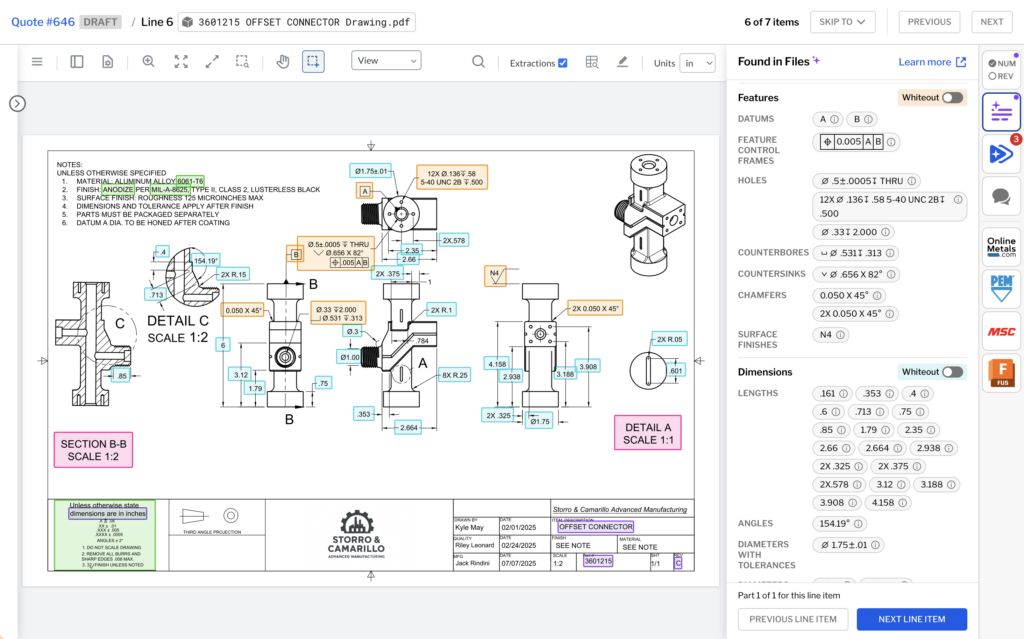
Wingman now extracts five new callout types as well as additional properties on dimensions:
-
Surface finish callouts, including roughness average, range, and class
-
Bend lines, including direction, angle, and internal radius
-
Chamfers, including side lengths and angle
-
Fully featured threads, including thread system, pitch, and more
-
Weld symbols — currently only location on prints, properties to come in the future
-
New dimension properties: role (basic, critical-to-quality, or reference), and keywords for stock and typical dimensions
All of these are available in the Requirements Review rules builder, allowing you to build rules around them that matter to your shop.
Material suggestions during quote setup
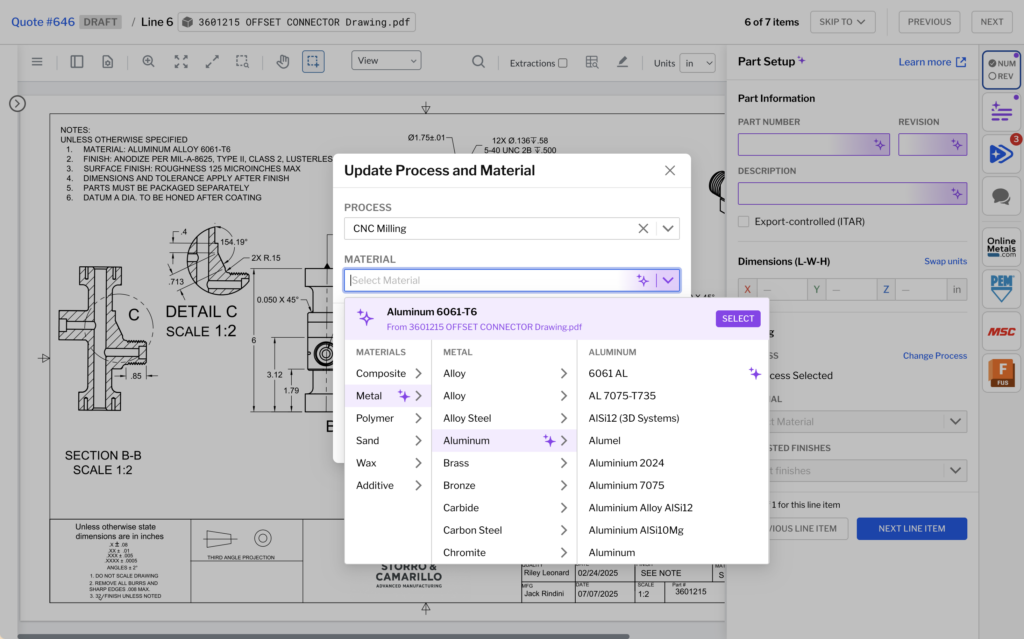
When Wingman detects a material on a print, it now suggests it in the Atomic Material field across the Process/Material/Finish dialogs and the quote part viewer.
If you use supplier materials, Wingman jumps you to the closest global match. If you use the “list” view of materials, Wingman will highlight potential matches but let you choose the result.
Found in Files now understands the whole print
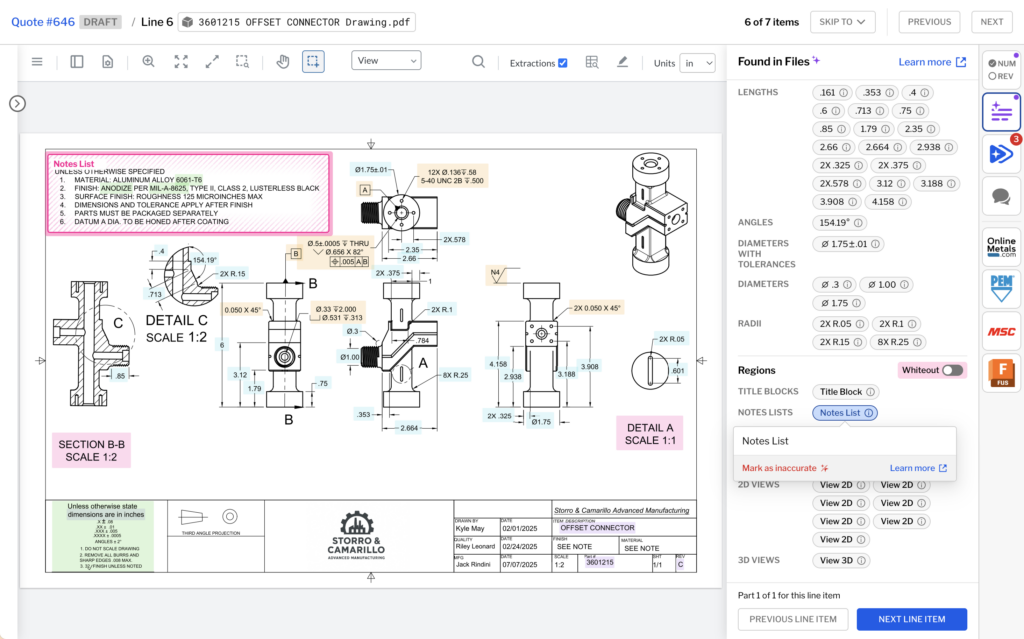
Beyond individual callouts, Wingman now extracts the structural regions of a drawing — the title block, the notes list, global tolerances, flag notes, individual views, and section and view captions. Click any region’s pill in Found in Files and the corresponding area is spotlighted on the print. By default these regions stay un-highlighted to keep the print clean.
A cleaner, faster extractions experience
This release also includes a number of improvements to working with extractions on prints:
-
A dedicated Found in Files ecosystem app in the part viewer — more viewable area, one less click to open
-
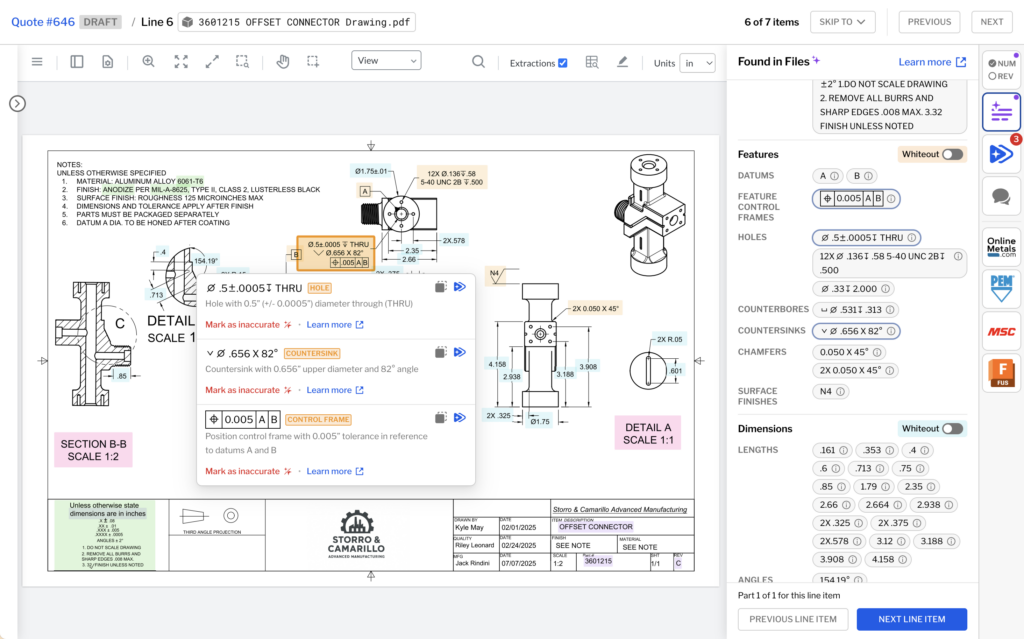
Stacked callouts so multiple extractions in the same callout are shown together rather than overlapping
-
A cleaner pill design, with enclosure shapes on basic, critical-to-quality, and reference dimensions so you can identify them at a glance
-
Copy-paste raw extraction text from any pill
-
A pulse animation when spotlighting a callout, making it easier to find on a dense print
Improved accuracy
Wingman 2.0 also improves the accuracy of the callouts it was already extracting. It now correctly identifies the presence and type of 88% of callouts and correctly extracts the details on 83% of callouts.
Learn more
To learn more about Found in Files and available extractions, see our Found in Files feature documentation.
To learn more about material suggestions, see our assigning a process, material, and finish documentation.